Flexible
Flexible是一个控制Row、Column、Flex等子组件如何布局的组件。
Flexible组件可以使Row、Column、Flex等子组件在主轴方向有填充可用空间能力,但是它与Expanded组件不同,它不强制子组件填充可用空间。
Expanded
Row、Column、Flex会被Expanded撑开,充满主轴可用空间。
使用方式:
 1
 2
 3
 4
 5
 6
 7
 8
 9
10
|
Row(
  children: <Widget>[
    Container( /// 此组件在主轴方向占据48.0逻辑像素
      width: 48.0
    ),
    Expanded(
      child: Container() /// 此组件会填满Row在主轴方向的剩余空间,撑开Row
    )
  ]
)
|
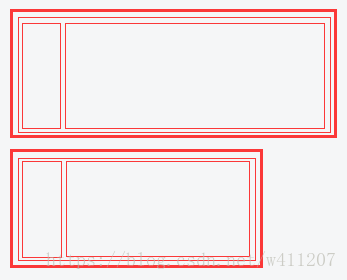
如果多个子组件展开,可用空间会被flex factor(表示扩展速度、比例)分割。
Expanded组件必须用在Row、Column、Flex内,并且从Expanded到封装它的Row、Column、Flex的路径必须只包括StatelessWidgets或StatefulWidgets组件(不能是其他类型的组件,像RenderObjectWidget,它是渲染对象,不再改变尺寸了,因此Expanded不能放进RenderObjectWidget)。
Expanded的用法
 1
 2
 3
 4
 5
 6
 7
 8
 9
10
11
12
13
14
15
16
17
18
19
20
21
22
23
24
25
26
27
28
29
30
31
32
33
34
35
36
37
38
39
40
41
42
43
44
45
46
47
|
import 'package:flutter/material.dart';
class LayoutDemo extends StatelessWidget {
  @override
  Widget build(BuildContext context) {
    return new Scaffold(
      appBar: new AppBar(
        title: new Text('水平方向布局'),
      ),
      body: new Row(
          children: <Widget>[
            new RaisedButton(
              onPressed: () {
                print('点击红色按钮事件');
              },
              color: const Color(0xffcc0000),
              child: new Text('红色按钮'),
            ),
            new Expanded(
              flex: 1,
              child: new RaisedButton(
                onPressed: () {
                  print('点击黄色按钮事件');
                },
                color: const Color(0xfff1c232),
                child: new Text('黄色按钮'),
              ),
            ),
            new RaisedButton(
              onPressed: () {
                print('点击粉色按钮事件');
              },
              color: const Color(0xffea9999),
              child: new Text('粉色按钮'),
            ),
          ]
      ),
    );
  }
}
void main() {
  runApp(
    new MaterialApp(
      title: 'Flutter教程',
      home: new LayoutDemo(),
    ),
  );
}
|
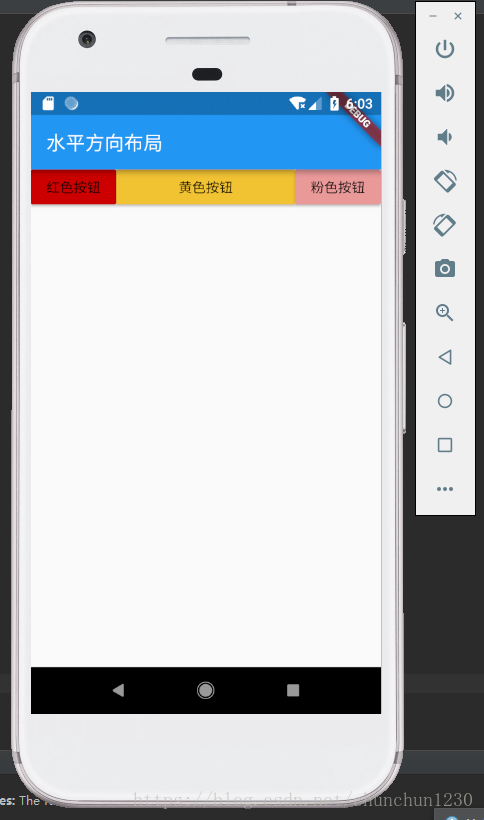
Flexible的用法
 1
 2
 3
 4
 5
 6
 7
 8
 9
10
11
12
13
14
15
16
17
18
19
20
21
22
23
24
25
26
27
28
29
30
31
32
33
34
35
36
37
38
39
40
41
42
43
44
45
46
47
|
import 'package:flutter/material.dart';
class LayoutDemo extends StatelessWidget {
  @override
  Widget build(BuildContext context) {
    return new Scaffold(
      appBar: new AppBar(
        title: new Text('水平方向布局'),
      ),
      body: new Row(
          children: <Widget>[
            new RaisedButton(
              onPressed: () {
                print('点击红色按钮事件');
              },
              color: const Color(0xffcc0000),
              child: new Text('红色按钮'),
            ),
            new Flexible(
              flex: 1,
              child: new RaisedButton(
                onPressed: () {
                  print('点击黄色按钮事件');
                },
                color: const Color(0xfff1c232),
                child: new Text('黄色按钮'),
              ),
            ),
            new RaisedButton(
              onPressed: () {
                print('点击粉色按钮事件');
              },
              color: const Color(0xffea9999),
              child: new Text('粉色按钮'),
            ),
          ]
      ),
    );
  }
}
void main() {
  runApp(
    new MaterialApp(
      title: 'Flutter教程',
      home: new LayoutDemo(),
    ),
  );
}
|
效果:
