AppBar和SliverAppBar是Material Design 中的App Bar,也就是Android中的Toolbal,关于Toolbar的设计指南请参考Material Design中Toolbar的内容。

AppBar和SliverAppBar都是继承StatefulWidget类,都代表Toolbar,二者的区别在于AppBar位置的固定在应用最上面,而SliverAppBar是可以跟随内容滚动的。

SliverAppBar的构造方法

 1
 2
 3
 4
 5
 6
 7
 8
 9
10
11
12
13
14
15
16
17
18
19
20
21
22
23
24
25
  /// Creates a material design app bar that can be placed in a [CustomScrollView].  ///
  /// The arguments [forceElevated], [primary], [floating], [pinned], [snap]
  /// and [automaticallyImplyLeading] must not be null.
const SliverAppBar({
    Key key,
    this.leading,         //左侧标题
    this.automaticallyImplyLeading = true,
    this.title,               //标题
    this.actions,          //菜单
    this.flexibleSpace,        //可以展开区域,通常是一个FlexibleSpaceBar
    this.bottom,         //底部内容区域
    this.elevation,            //阴影
    this.forceElevated = false,
    this.backgroundColor,       //背景色
    this.brightness,   //主题明亮
    this.iconTheme,  //图标主题
    this.textTheme,    //文字主题
    this.primary = true,  //是否预留高度
    this.centerTitle,     //标题是否居中
    this.titleSpacing = NavigationToolbar.kMiddleSpacing,
    this.expandedHeight,     //展开高度
    this.floating = false,       //是否随着滑动隐藏标题
    this.pinned = false,  //是否固定在顶部
    this.snap = false,   //与floating结合使用
  })

如果你看过AppBar的构造方法,那么你会发现AppBar的构造方法都是在这里面的。其守护星也是一致的,下面我们针对公共的属性都做一下解释:

  • leading:在标题前面显示一个控件,在首页通常显示应用的logo;在其他页面通常显示返回按钮
  • title:Toolbar中主要内容,通常显示为当前界面的标题文字
  • actioons:一个Widget列表,代表Toolbar中所显示的菜单,对于常用的菜单,通常使用IconButton来表示;对于不常用的菜单通常私用PopupMenuButton来显示为三个点,点击后弹出二级菜单
  • bottom:一个AppBarbottomWidget对象,通常是TabBar。用来在Toolbar标题下面显示一个Tab导航栏
  • elevation:Material Design中的控件z坐标顺序,默认值为4,对于可滚动的SliverAppBar,当SliverAppBar和内容同级的时候,该值为0,当内容滚动SliverAppBar变为Toolbar的时候,修改elevation的值
  • flexibleSpace:一个显示在AppBar下方的控件,高度和AppBar高度一样,可以实现一些特殊的效果,该属性通常在SliverAppBar中使用
  • backgroundColor:AppBar的颜色,默认值为ThemeData.primaryColor。该值通常和下面三个属性一起使用。
  • birghtness:AppBar的亮度,有白色和黑色两种主题,默认值为ThemeData.primaryColorBrightness
  • iconTheme:AppBar上图标的颜色,透明度和尺寸信息。默认值为ThemeData.primaryIconTHeme
  • textTheme:AppBar上的文字样式,默认值根据不同操作系统显示方式不一ThemeData.primaryTextTheme
  • centerTitle:标题是否居中显示,默认值根据不同操作系统显示方式不一样

虽然基本相同,构造方法也是非常简单,但是我们却不能直接使用它,由官方文档可以看出我们通常结合ScrollView来使用它。

我们结合CustomscrollView来看下面的例子吧:

 1
 2
 3
 4
 5
 6
 7
 8
 9
10
11
12
13
14
15
16
17
18
19
20
21
22
23
24
25
26
27
28
29
30
31
32
33
34
35
36
37
38
39
40
41
42
43
import 'package:flutter/material.dart';

class DiscoverListPage extends StatelessWidget {
  @override
  Widget build(BuildContext context) {
    return Scaffold(
      body: NestedScrollView(
          headerSliverBuilder: _sliverBuilder,
          body: Center(
            child: ListView.builder(
              itemBuilder: _itemBuilder,
              itemCount: 15,
            ),
          )),
    );
  }

  List<Widget> _sliverBuilder(BuildContext context, bool innerBoxIsScrolled) {
    return <Widget>[
      SliverAppBar(
        centerTitle: true,    //标题居中
        expandedHeight: 200.0,  //展开高度200
        floating: false,  //不随着滑动隐藏标题
        pinned: true,    //固定在顶部
        flexibleSpace: FlexibleSpaceBar(
          centerTitle: true,
          title: Text('我是一个FlexibleSpaceBar'),
          background: Image.network(
            "https://timgsa.baidu.com/timg?image&quality=80&size=b9999_10000&sec=1531798262708&di=53d278a8427f482c5b836fa0e057f4ea&imgtype=0&src=http%3A%2F%2Fh.hiphotos.baidu.com%2Fimage%2Fpic%2Fitem%2F342ac65c103853434cc02dda9f13b07eca80883a.jpg",
            fit: BoxFit.cover,
          ),
        ),
      )
    ];
  }

Widget _itemBuilder(BuildContext context, int index) {
    return ListTile(
      leading: Icon(Icons.android),
      title: Text('无与伦比的标题+$index'),
    );
  }
}

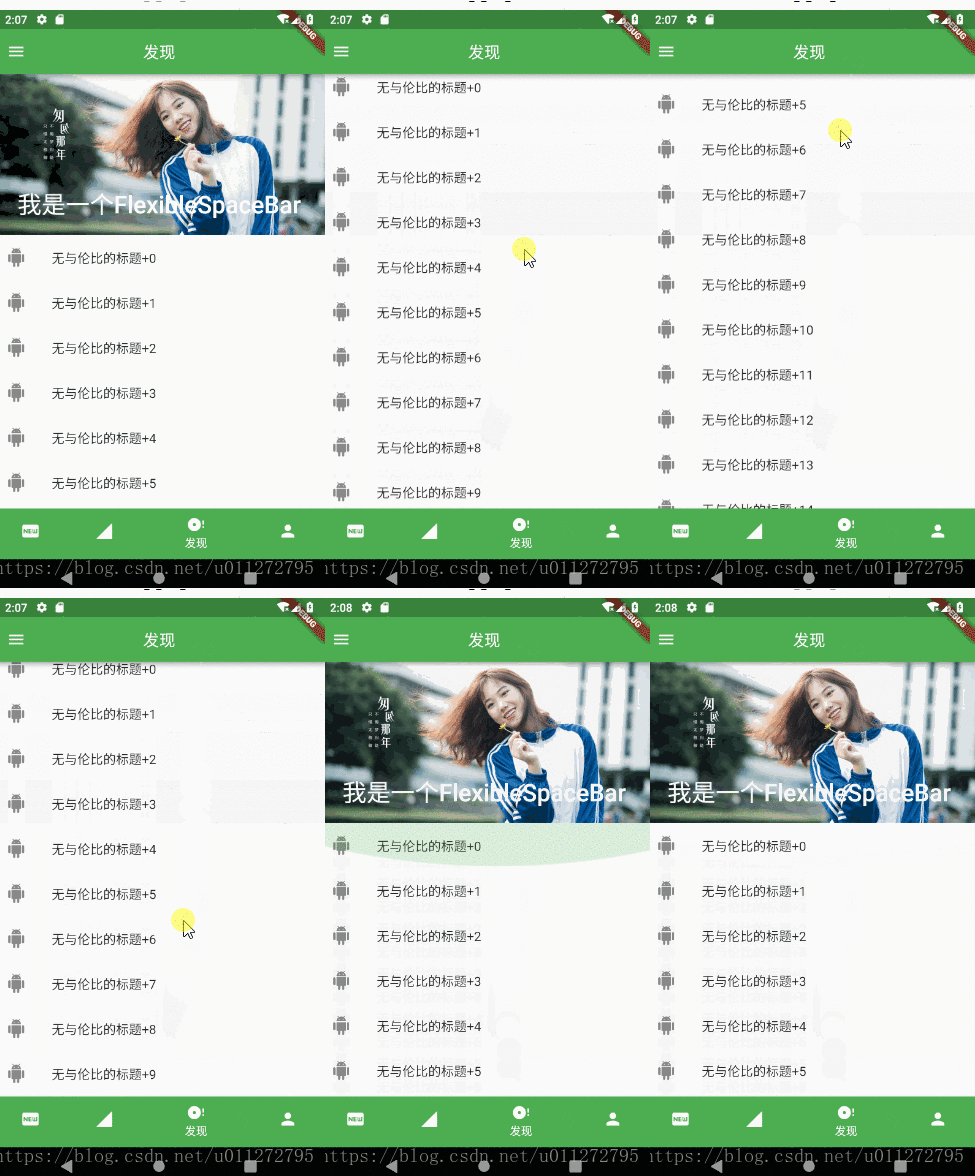
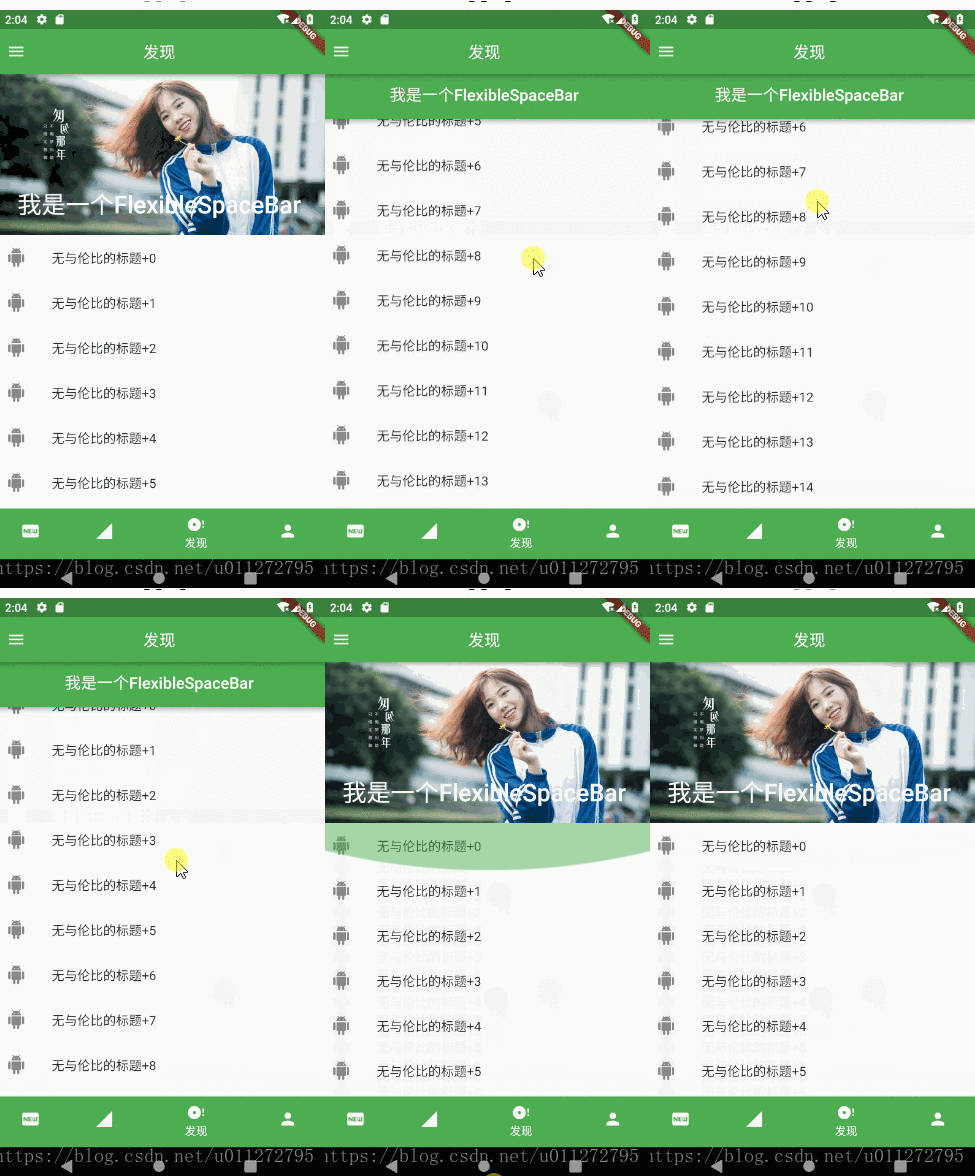
首先我们使用了NestedScrollView中的headerSliverBuilder属性添加了SliverAppBar 然后我们设置展开的高度为200,不让标题栏随着滚动滚出可视区域 最后我们给NestedScrollView的body加了一个长度为15的ListView 效果如下图: 效果
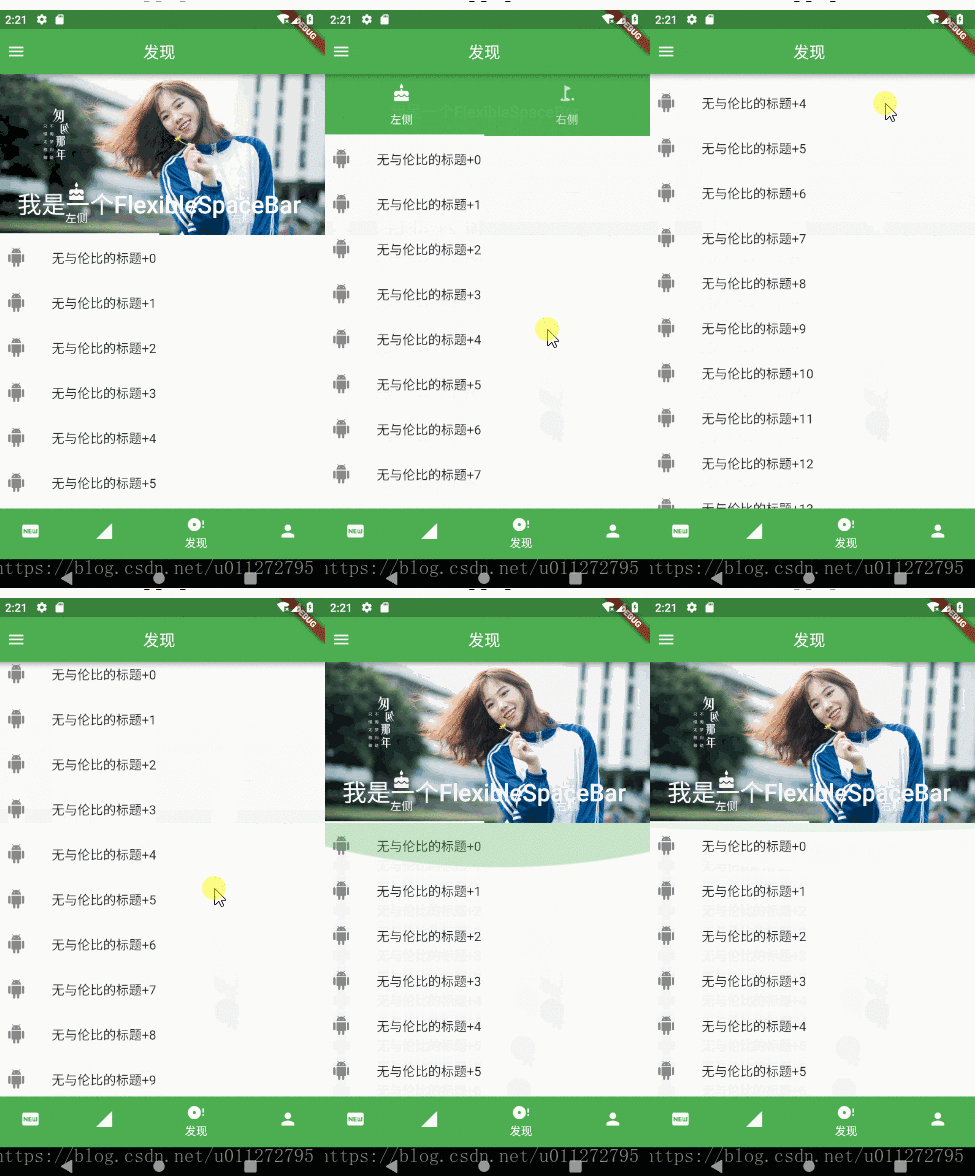
我们把pinned的属性设置为false(不固定在顶部),再看一下效果: 效果

接下来我们看下bottom属性,允许我们在下面放置其他widget, 其实代码很简单,值不过我们需要让DiscoverlistPage继承于StatefulWiget,然后让State withh TickerProviderStateMixin,并为SliverAppBar添加botton,改造后的代码如下:

 1
 2
 3
 4
 5
 6
 7
 8
 9
10
11
12
13
14
15
16
17
18
19
20
21
22
23
24
25
26
27
28
29
30
31
32
33
34
35
36
37
38
39
40
41
42
43
44
45
46
47
48
49
50
51
52
53
54
55
56
57
58
59
60
61
import 'package:flutter/material.dart';

class DiscoverListPage extends StatefulWidget {
  @override
  State<StatefulWidget> createState() => DiscoverListState();
}

class DiscoverListState extends State<DiscoverListPage>
    with TickerProviderStateMixin {
  @override
  Widget build(BuildContext context) {
    return Scaffold(
      body: NestedScrollView(
          headerSliverBuilder: _sliverBuilder,
          body: Center(
            child: ListView.builder(
              itemBuilder: _itemBuilder,
              itemCount: 15,
            ),
          )),
    );
  }

  List<Widget> _sliverBuilder(BuildContext context, bool innerBoxIsScrolled) {
    return <Widget>[
      SliverAppBar(
        //标题居中
        centerTitle: true,
        //展开高度200
        expandedHeight: 200.0,
        //不随着滑动隐藏标题
        floating: false,
        //固定在顶部
        pinned: false,
        flexibleSpace: FlexibleSpaceBar(
          centerTitle: true,
          title: Text('我是一个FlexibleSpaceBar'),
          background: Image.network(
            "https://timgsa.baidu.com/timg?image&quality=80&size=b9999_10000&sec=1531798262708&di=53d278a8427f482c5b836fa0e057f4ea&imgtype=0&src=http%3A%2F%2Fh.hiphotos.baidu.com%2Fimage%2Fpic%2Fitem%2F342ac65c103853434cc02dda9f13b07eca80883a.jpg",
            fit: BoxFit.cover,
          ),
        ),
        //    bottom   这是新增的    这是新增的    这是新增的      这是新增的
        bottom: TabBar(
          tabs: [
            Tab(icon: Icon(Icons.cake), text: '左侧'),
            Tab(icon: Icon(Icons.golf_course), text: '右侧'),
          ],
          controller: TabController(length: 2, vsync: this),
        ),
      )
    ];
  }

  Widget _itemBuilder(BuildContext context, int index) {
    return ListTile(
      leading: Icon(Icons.android),
      title: Text('无与伦比的标题+$index'),
    );
  }
}

效果: x

由于TabBar的高度所以我们并不能让SliverAppBar滑动到顶部,所以要想实现随着SliverAppBar的移动,把TabBar放在bottom也不是很合适的。 在这里,我们可以借助于SliverPersistentHeader中的SliverPersistentHeader属性来解决

SliverPersistentHeader的构造很简单,只有简单的几个属性,不再具体讲了

1
2
3
4
5
6
const SliverPersistentHeader({
    Key key,
    @required this.delegate,
    this.pinned = false,
    this.floating = false,
  })

全部代码如下:

 1
 2
 3
 4
 5
 6
 7
 8
 9
10
11
12
13
14
15
16
17
18
19
20
21
22
23
24
25
26
27
28
29
30
31
32
33
34
35
36
37
38
39
40
41
42
43
44
45
46
47
48
49
50
51
52
53
54
55
56
57
58
59
60
61
62
63
64
65
66
67
68
69
70
71
72
73
74
75
76
77
78
79
80
81
82
83
84
85
86
87
88
import 'package:flutter/material.dart';

class DiscoverListPage extends StatefulWidget {
  @override
  State<StatefulWidget> createState() => DiscoverListState();
}

class DiscoverListState extends State<DiscoverListPage>
    with TickerProviderStateMixin {
  @override
  Widget build(BuildContext context) {
    return Scaffold(
      body: NestedScrollView(
          headerSliverBuilder: _sliverBuilder,
          body: Center(
            child: ListView.builder(
              itemBuilder: _itemBuilder,
              itemCount: 15,
            ),
          )),
    );
  }

  List<Widget> _sliverBuilder(BuildContext context, bool innerBoxIsScrolled) {
    return <Widget>[
      SliverAppBar(
        //标题居中
        centerTitle: true,
        //展开高度200
        expandedHeight: 200.0,
        //不随着滑动隐藏标题
        floating: false,
        //固定在顶部
        pinned: false,
        flexibleSpace: FlexibleSpaceBar(
          centerTitle: true,
          title: Text('我是一个FlexibleSpaceBar'),
          background: Image.network(
            "https://timgsa.baidu.com/timg?image&quality=80&size=b9999_10000&sec=1531798262708&di=53d278a8427f482c5b836fa0e057f4ea&imgtype=0&src=http%3A%2F%2Fh.hiphotos.baidu.com%2Fimage%2Fpic%2Fitem%2F342ac65c103853434cc02dda9f13b07eca80883a.jpg",
            fit: BoxFit.cover,
          ),
        ),
      ),
      SliverPersistentHeader(
          delegate: _SliverAppBarDelegate(TabBar(
        labelColor: Colors.red,
        unselectedLabelColor: Colors.grey,
        tabs: [
          Tab(icon: Icon(Icons.cake), text: '左侧'),
          Tab(icon: Icon(Icons.golf_course), text: '右侧'),
        ],
        controller: TabController(length: 2, vsync: this),
      )))
    ];
  }

  Widget _itemBuilder(BuildContext context, int index) {
    return ListTile(
      leading: Icon(Icons.android),
      title: Text('无与伦比的标题+$index'),
    );
  }
}

class _SliverAppBarDelegate extends SliverPersistentHeaderDelegate {
  _SliverAppBarDelegate(this._tabBar);

  final TabBar _tabBar;

  @override
  double get minExtent => _tabBar.preferredSize.height;

  @override
  double get maxExtent => _tabBar.preferredSize.height;

  @override
  Widget build(
      BuildContext context, double shrinkOffset, bool overlapsContent) {
    return Container(
      child: _tabBar,
    );
  }

  @override
  bool shouldRebuild(_SliverAppBarDelegate oldDelegate) {
    return false;
  }
}

效果: x